Technology is supposed to make our lives simpler. However, every now and then, someone in the world gets stuck with a printer that just won’t print black, and they aren’t alone. We understand the frustration that comes with such an obstacle, especially if you’re having a busy day or running late for a meeting and need paper documents now. It’s a great thing you’ve come to the right place, as a top wholesale OEM toner and printer ink provider, where we have a step-by-step guide for a printer not printing black.
Check the Basics
Various potential reasons could be the cause of a printer not printing black ink, and we will need to identify the cause to get your printer functional again. The first step we recommend is to check the basics. Identify the model of your printer and what type of printer you’re using – whether it is inkjet or laser, for example. It helps to have access to the printer’s relevant manuals so you can have as much help as you need. These are a few steps you can take to check the basics:
- Check if your printer has been set up correctly – Retrieve your printer’s user manual and ensure that the setup was done properly.
- Check cartridge levels – Replace any low or empty cartridges.
- Print a test page or conduct a Quality Diagnostic Report – This helps to determind the performance of your printer and see if any black ink manages to make it to the page.
- Perform a full power cycle – In simpler terms, shut your printer down, disconnect all power sourcces and cables, wait a few minutes, and then turn it back on to see if your problem is solved.
Related content: Causes & Fixes for When Your Printer isn’t Printing Correctly
Identify Cartridge Problems
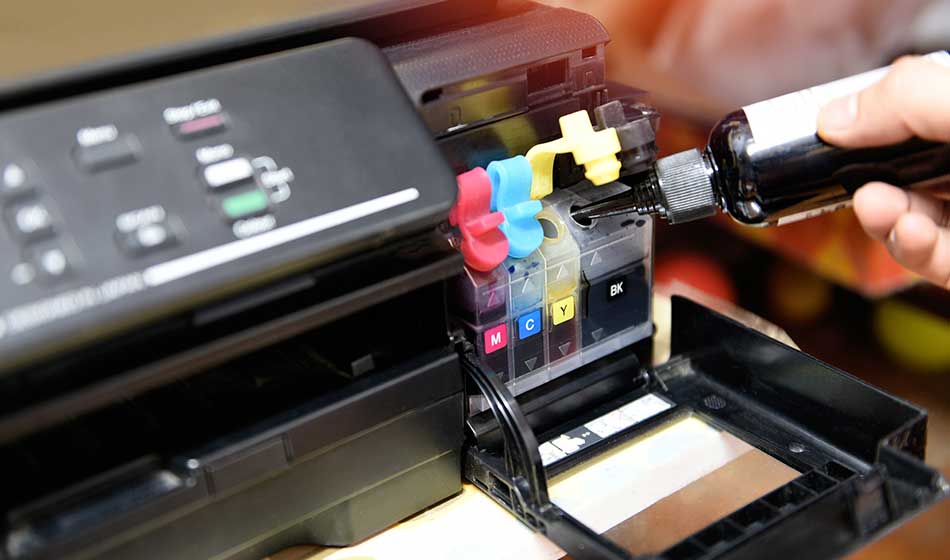
Firstly, you can check the cartridge vent to to see if there is a small piece of tape covering the vent. If you find one, ensure that it is removed so the cartridge is vented right and works as expected. If this doesn’t work, check if there are any other obstructions in the way and clean the vents if there are. Next, if your cartridge is not empty, there may be other less obvious reasons for a printer not printing black. Try replacing all the printer cartridges to see if it helps. For optimal results, it’s best to use Original Equipment Manufacturer (OEM) cartridges.
Identify Printhead Problems
Cleaning the printhead is an integral part of printer maintenance and as dried ink can accumulate inside it over time. Here are the two main approaches for cleaning it:
- Manual Printhead Cleaning – Manually cleaning the printhead can give you better results although the automatic feature could work just as fine.
- Automatic Printhead Cleaning – You may need to run this feature a few times to unclog the printhead.
Why Choose OEM Connect?
OEM Connect is widely known as one of the leading companies office workers and individuals turn to for genuine OEM printer and toner supplies. For those who have urgent orders, we offer same day shipment for orders received by 4 PM EST at the lowest prices. If you have any questions about OEM Connect’s range of services, feel free to contact us today!

Frequently Asked Questions for Printer Not Printing Black
Why is my printer printing color but not black?
Most of the time it’s one of three things: the black cartridge isn’t feeding ink correctly, the printhead/nozzles for black are clogged, or your settings are forcing the job to print without black (grayscale/color-only quirks happen more than you’d think).
How do I make sure my printer isn’t set to “print in grayscale” or “use color ink only”?
Open your print dialog and check Print Settings / Properties / Preferences. Look for options like Grayscale, Black & White, Color, or Use Black Ink Only. Toggle the opposite of what you’re trying to do, then print a quick test page.
What’s a “nozzle check,” and why should I run it?
A nozzle check prints a small test pattern that shows whether black ink is actually firing. If you see missing lines or a broken pattern in the black section, you’ve basically confirmed a clog or ink-delivery problem.
How many times should I run the printhead cleaning cycle?
Start with one cleaning cycle, then run a nozzle check. If it improves but isn’t perfect, run one more. If you’ve done 2–3 cycles with no real improvement, stop hammering it, you’ll burn through ink fast and may still be stuck with the same issue.
Should I replace the black cartridge even if it says it isn’t empty?
Yes, sometimes. The printer’s “ink level” is an estimate, and cartridges can fail, vent improperly, or just not seat right. Reseating the cartridge and checking for protective tape/packaging is step one. If black still won’t print, swapping the cartridge is a clean way to eliminate the most common variable.
Can third-party or refilled cartridges cause black not to print?
They can. Some printers are picky about chip recognition, airflow/venting, or cartridge tolerances. If the issue started right after installing a non-OEM cartridge, testing with a known-good cartridge can save a lot of time.
Why is my “black” coming out gray or faded?
Common causes: draft/eco mode, wrong paper setting, low density settings, or partial nozzle clogging. Switch to Normal/Best quality, confirm the paper type is correct, and run a nozzle check. If black looks broken, you’re back in printhead-cleaning territory.
Can I still print if black won’t work?
Sometimes, yes. Many inkjets have a setting like “Use color inks to create black” (wording varies). It’s not ideal and it can burn through color ink quickly, but it can get you through an emergency print job.
When is it time to call for service or stop troubleshooting?
If you’ve confirmed the cartridge is good, settings are correct, and 2–3 cleaning attempts don’t change the nozzle check, the printhead may be too clogged or failing. That’s usually the point where repair/service (or replacement, depending on the model) becomes the smarter move.